 MetadataViewer
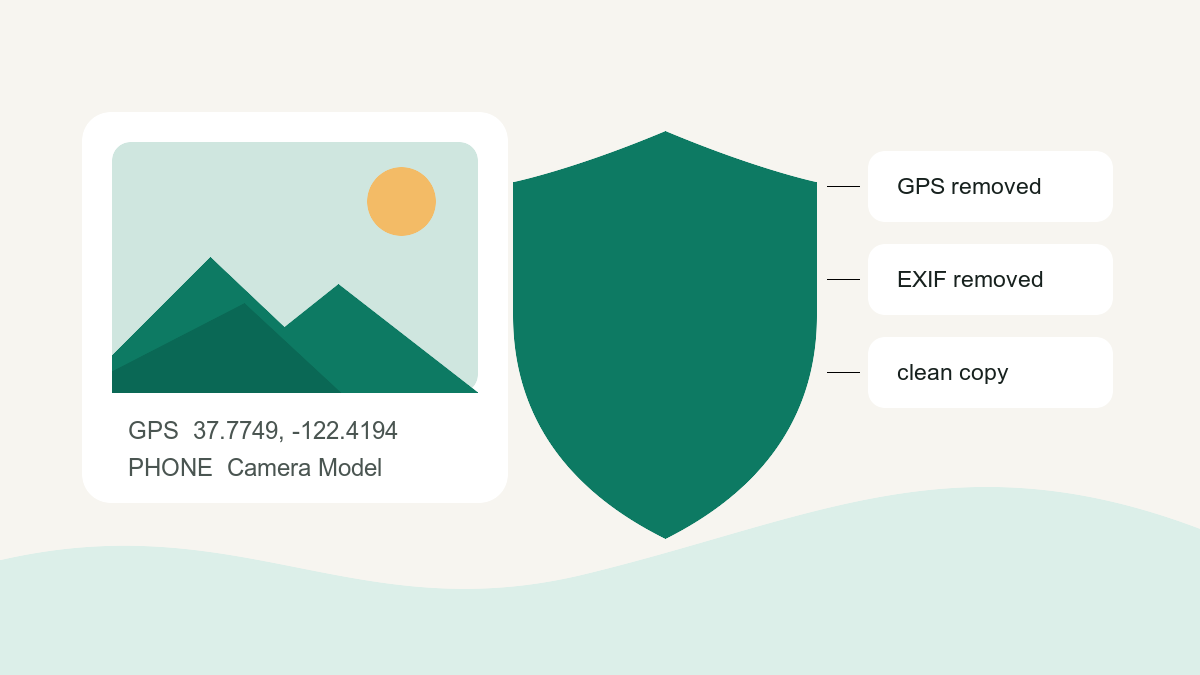
To share a photo with less personal information, start with your device’s privacy controls and check the exact copy you will send. iPhone and Mac Photos offer location controls; Windows can remove supported file properties. Android controls vary, and Google Photos cannot erase location written by the camera.
This guide covers the built-in steps and their limits. For a supported file you want to clean without installing software, use the photo metadata remover. It creates a separate local copy; it does not change your photo library.
If you’re sharing a photo together with a PDF or video, the metadata remover can check each attachment in the same browser tab.
Choose the right platform workflow
| Platform | Start here | Important limit |
|---|---|---|
| iPhone / iPad | Photos → Share → Options | Location sharing controls are not a promise to erase every tag |
| Android | Check camera location settings and the exported file | Google Photos cannot remove camera-written location |
| Windows | File Properties → Details | Only supported properties can be removed |
| Mac | Photos → Image → Location | Hiding location is not a general metadata wipe |
iPhone: exclude location when sharing from Photos
- Open Photos and select the image you intend to share.
- Tap Share, then Options before choosing the destination.
- Turn off Location and confirm the sharing options.
- Choose the destination and check the received or exported copy.
Apple documents this in its photo location privacy guide. A sharing setting does not mean every copy in your library has been permanently cleaned. When a share method offers All Photos Data, review that option too: original files, editing history and other metadata may be included.
If the image still identifies a private place through a street sign, address or recognizable view, removing GPS is not enough. Crop or redact the visible detail separately, export the result, then inspect that export.
Android: distinguish camera location from Google Photos location
In Google Photos, open the image and inspect its information panel. An estimated or manually added location can be changed or removed there, but a camera-written location cannot. Google’s location help explains this distinction.
- Check whether the location came from the camera or was added later in Photos.
- For an editable location, use its edit control and remove it.
- For camera-written GPS, clean an exported local copy with a tool that handles the file format.
- To prevent future location tags, disable Save location or Location tags in the camera app; the setting name depends on the manufacturer.
Changing an album or sharing setting is different from rewriting the local image. Inspect the file you actually attach, especially when sending it as an original or document.
Windows: create a copy with supported properties removed
- In File Explorer, right-click the photo and open Properties.
- Choose Details, then Remove Properties and Personal Information if available.
- Select Create a copy with all possible properties removed and confirm.
- Open the new copy and check its Details panel again.
The available fields depend on the format and Windows’ property handler. “All possible” refers to that handler’s coverage, not every metadata container. If the option is missing or a field remains, use a format-aware cleaner and inspect its output. Do not replace the original until you have checked orientation, color and image content.
Mac: manage location in Photos, then check the export
- Open Photos and select the image you want to share.
- Use the Info button to review its location.
- Choose Image → Location → Hide Location.
- Export or share your intended copy, then inspect that file before sending it onward.
Apple documents this in the location privacy guide linked above. A library-level location setting is not a general EXIF, XMP or IPTC wipe. Do not assume that exporting an unmodified original applies every library adjustment. If the exported file still has sensitive fields, clean that copy and verify it again.
Verify the file that will reach the recipient
Open the final download in an image metadata viewer and check location, device, dates and other readable fields. A missing field only means the parser did not find it. Then review the image itself and attach the checked copy, rather than accidentally choosing the original from your library.
Re-editing, exporting or sending through another app can change metadata again. Verification belongs at the end of that workflow. Keep the original privately if its capture information is useful for organizing your own library.