 MetadataViewer
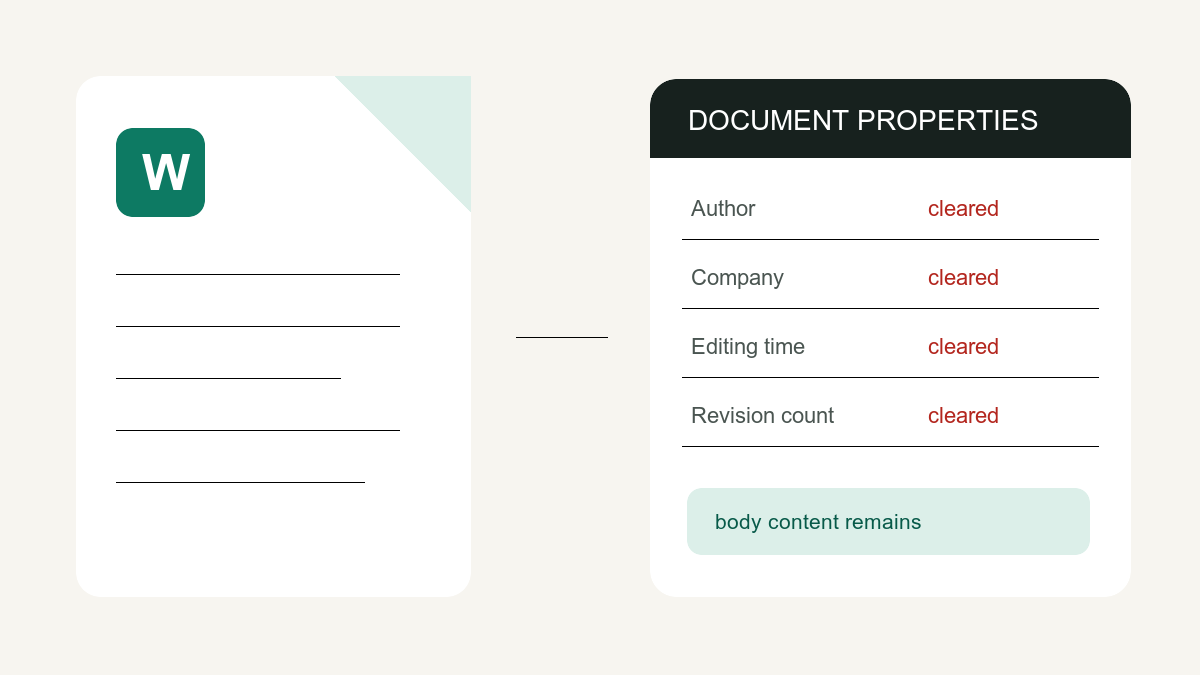
In Word for Windows, use Document Inspector to check personal properties and selected hidden-content categories before sharing. On Mac, review File → Properties manually; Word for the web does not offer the same property inspection. Always work on a copy and check it again after saving.
This guide explains those platform workflows. If you only need to clear supported author, company and date properties from a DOCX without installing Word, the Word metadata remover creates a separate copy locally in your browser. Comments, tracked changes and document text require separate review in Word.
When sending a document with photos or other attachments, use the metadata remover to inspect those files separately.
Windows: run Word’s Document Inspector on a copy
- Save a separate copy with a name you can distinguish from the working original.
- Open File → Info → Check for Issues → Inspect Document.
- Select Document Properties and Personal Information. Select other categories, such as comments and revisions, only when you want to inspect them too.
- Choose Inspect and review the findings before selecting Remove All for the relevant categories.
- Save the copy and run the inspection again.
Microsoft’s Document Inspector documentation explains the categories and limits. Some removals cannot be undone. Treat a finding as something to review, especially if the document relies on comments, hidden content or other collaboration features.
Mac: edit document properties manually
Microsoft confirms that Word for Mac has no Document Inspector. Use the property dialog for the fields it exposes:
- Open your copy in Word for Mac and select File → Properties.
- On Summary, review fields such as Author and clear identifying values where editable.
- On Custom, select any unwanted custom property and delete it.
- Save, close and reopen the copy, then review the properties again.
This manual workflow is not equivalent to Windows’ inspection categories. Review comments and tracked changes separately, and do not assume an empty Author field means the whole document contains no personal information.
Word for the web: use the desktop app for property inspection
Word for the web currently cannot view or change document properties through the desktop property workflow. If you have the desktop app, use Editing → Open in Desktop App, then follow the Windows or Mac steps above. Otherwise, download a DOCX copy and use a property cleaner whose limits match your needs.
Keep track of which version is authoritative. Cleaning a downloaded file does not clean the original document in OneDrive or another shared workspace, and it does not revoke anyone’s existing access.
Comments and tracked changes need a separate decision
Hiding markup changes the view, not the underlying revisions. Decide which edits to accept or reject, and delete comments you do not intend to share. Microsoft’s tracked-change instructions describe the Review workflow. Preserve a private working copy if you still need the discussion or editing history.
The browser property cleaner leaves the document body intact. Clearing author or revision-count properties therefore does not remove a reviewer’s name inside a comment, text marked for deletion, or a name printed in a header. Those are different locations for information, even when the same person’s name appears in each.
Check the saved copy before sending it
- Reopen the saved file and confirm that layout, images and required content still look right.
- Recheck personal properties after the last save; an editor may write new values.
- Review comments, revisions, headers, footers and visible identifying text.
- If you export a PDF, inspect that PDF separately: it is a new file with its own properties.
- Attach the checked copy and keep the working original private.
A property check describes what a particular reader found, not proof that every possible embedded object was removed. For a document that needs redaction, review its content and use a dedicated redaction workflow as well.